
TIP TRACKING
Connect StreamElements to Widgetdeck
You need to connect your StreamElements account to Widgetdeck only if you are planning to track tips you received to StreamElements. Otherwise, you can completely ignore this section.
- 1
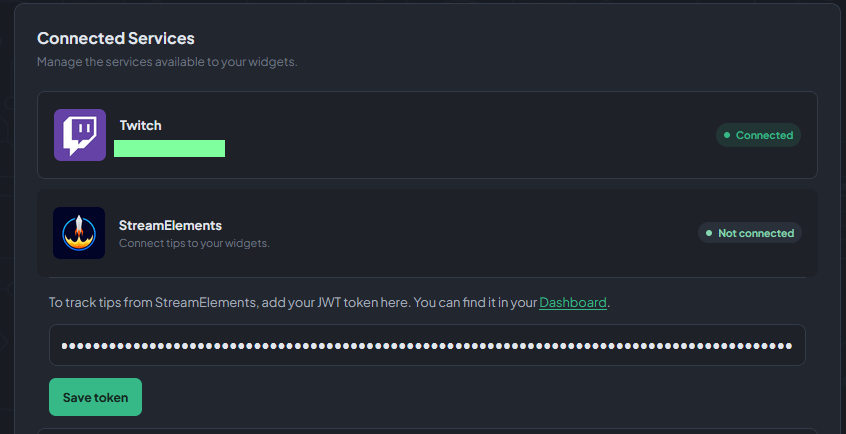
In your Widgetdeck account, open Settings.
- 2
In Connected Services, expand StreamElements.
- 3
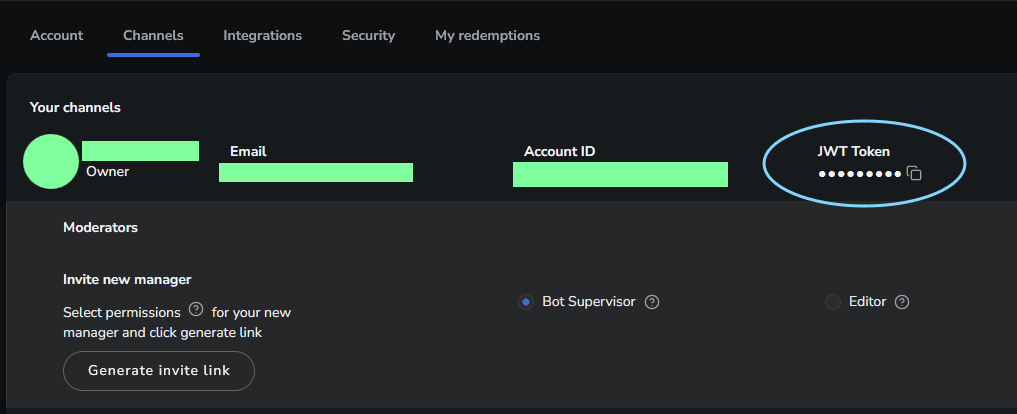
Open the StreamElements dashboard. Select your avatar, choose your channel, and then choose the correct platform channel for tip events. Copy that channel’s JWT.
- 4
Return to Widgetdeck, paste the JWT into the StreamElements token field, and select Save token.
- 5
Wait for the connection status to change to Connected. It may briefly show Connecting while the connection starts.
UNDERSTANDING THE WIDGET
Create multiple goals
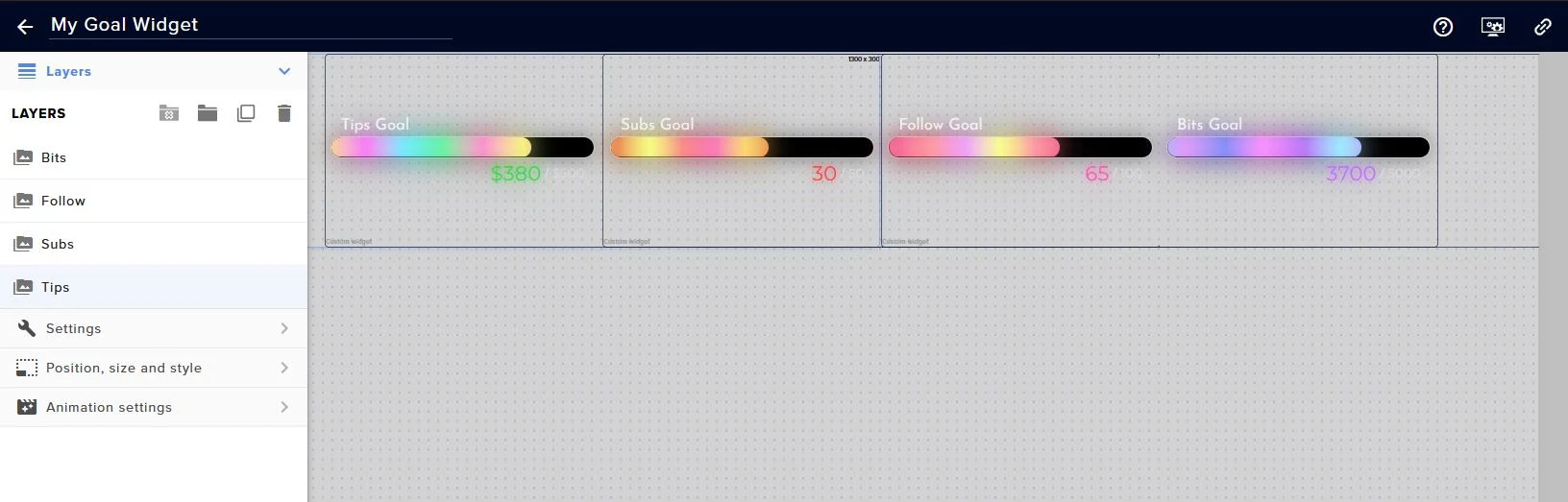
You may be wondering why you’re seeing only one goal instead of four goals as advertised. Let’s clear up the confusion.
- 1
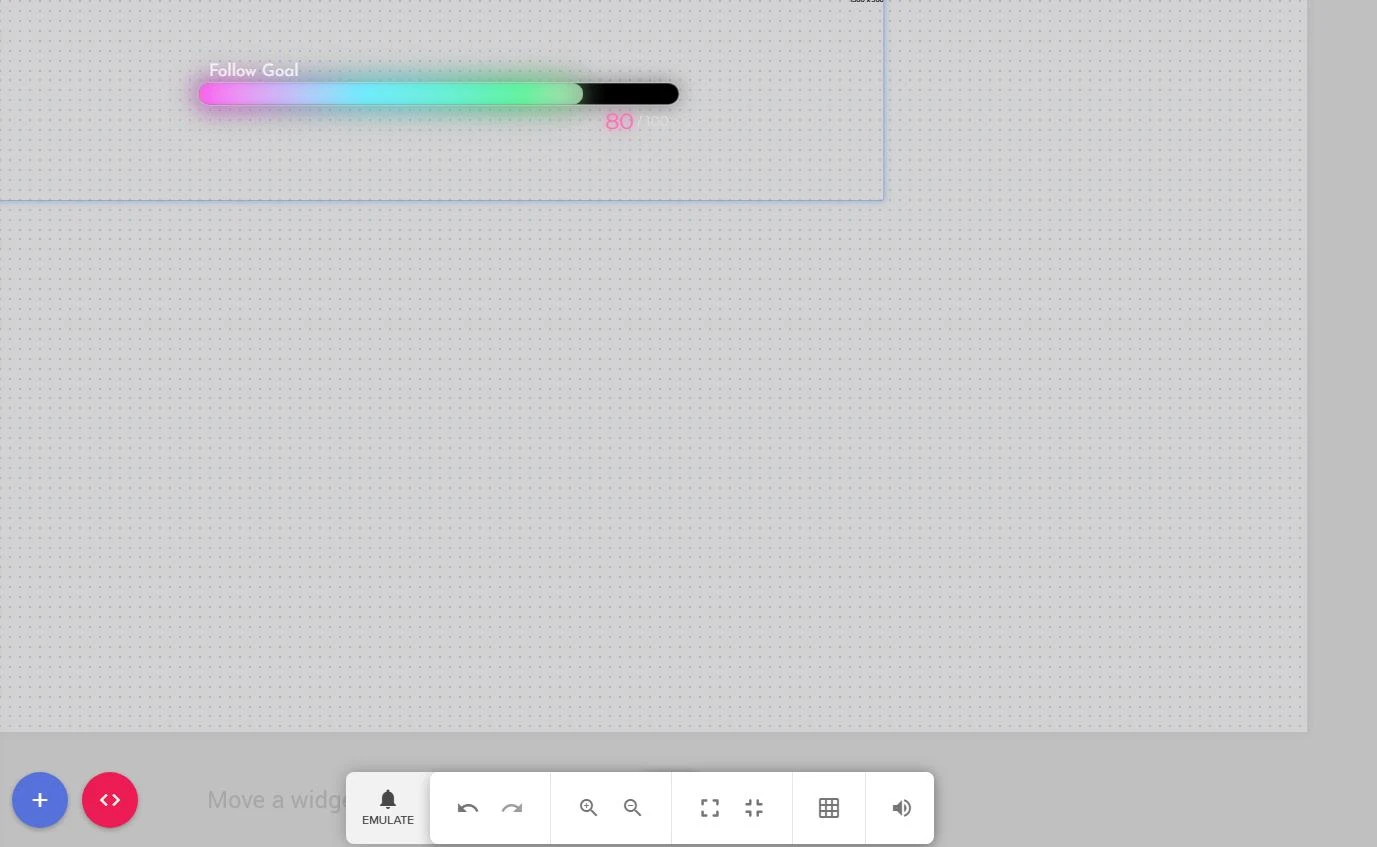
First, zoom out the window slightly.
- 2
The area covered with green boundary represents your monitor screen. We can create copies of goals and place them next to each other, then scale them down later inside OBS. First, reduce the goal bar width under Visual Appearance as needed.
- 3
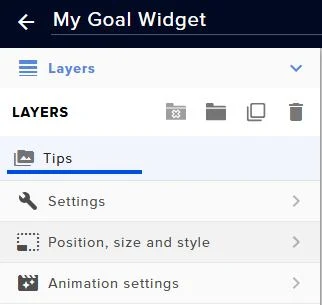
Go to Layers Panel. Select the first layer and double click on the name to rename it. Set the name to Tips.
- 4
Click the Duplicate icon. This creates a new copy of the selected Tips layer.
- 5
Create three duplicates and place them next to each other. Rename each layer for clarity.
- 6
Click on each layer, go to Settings → Goal Configuration, choose the goal types for each layer, and change the colors and title as you prefer.
IMPORT TO OBS
Add the widget to OBS
Open the widget in your Widgetdeck editor and save your settings before adding it to OBS.
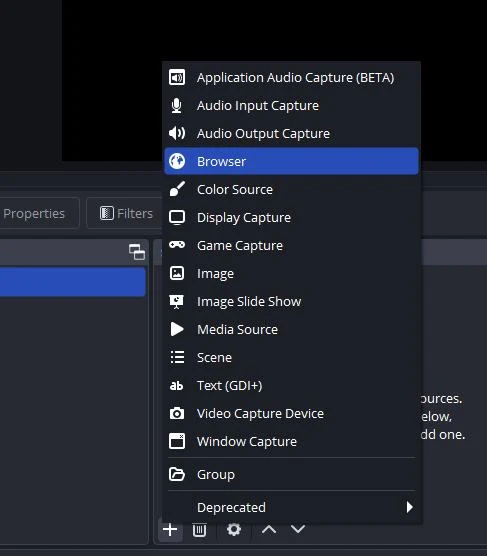
Now let’s add the widget to OBS using a Browser Source.
- 1
Open OBS and create a new browser source.
- 2
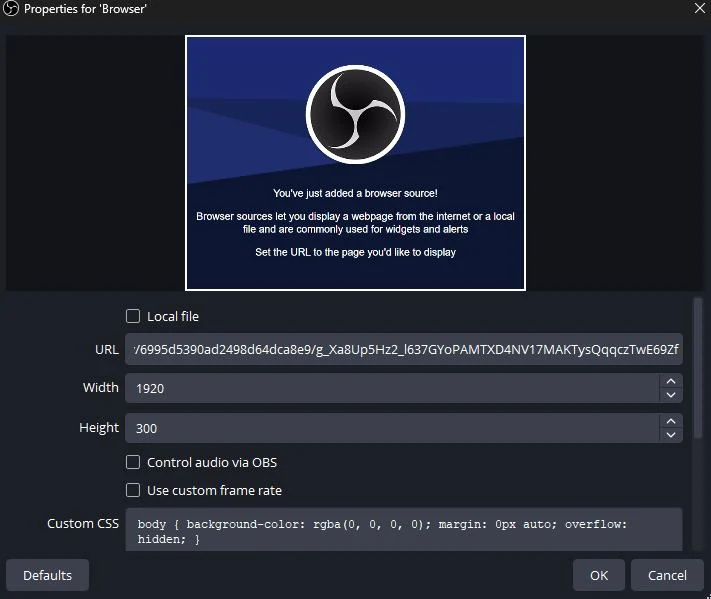
In the Widgetdeck editor, click Copy Widget URL.
- 3
Paste the copied URL into the URL box. Set the width to 1920 and the height to 1080. Click OK.
- 4
Scale and reposition the widget inside OBS by dragging its handles.

Use the following settings to customize how your widget looks and works.
PERMISSIONS
Choose who can control the widget
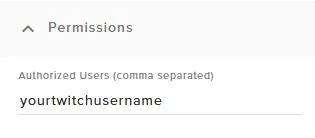
This is where you configure who can use chat commands to control the widget. Add your username here first. Otherwise, you won’t be able to use chat commands. To allow others, such as moderators, add their usernames separated by commas.
GOAL CONFIGURATION
Configure each goal
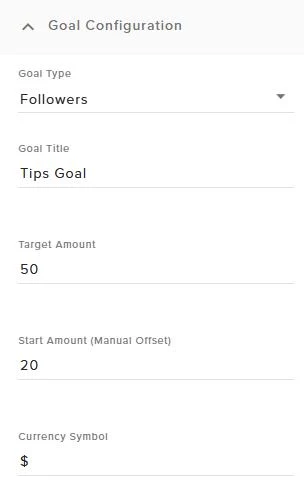
Goal Type: Choose what you want this layer to track. Duplicate layers to create goals with different types.
Goal Title: Set the label displayed on the goal bar.
Target Amount: Set the amount you want the goal to reach.
Start Amount: Set the goal’s current starting value. You can also update it with a chat command.
Currency Symbol: Choose the symbol shown for a tip goal.
VISUAL APPEARANCE
Style the progress bar
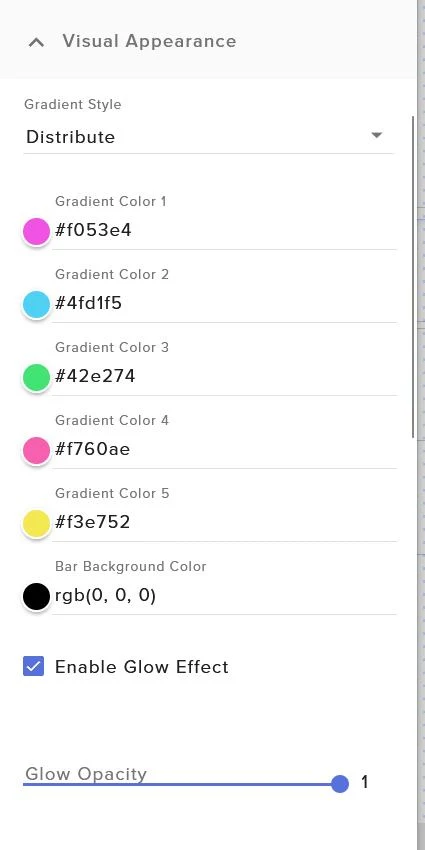
Gradient Style: In Reveal mode, the selected gradient colors appear as the bar fills. In Distribute mode, the selected gradient colors appear only in the filled area.
Gradient Color 1-5: Set the colors. For a single color, choose the same color for all slots.
Enable Glow Effect + Glow Opacity: Turn the glow effect on or off and adjust its amount.
Enable Drop Shadow: Enable or disable the subtle shadow behind the progress bar.
Bar Height + Bar Width: Change the progress bar height and width.
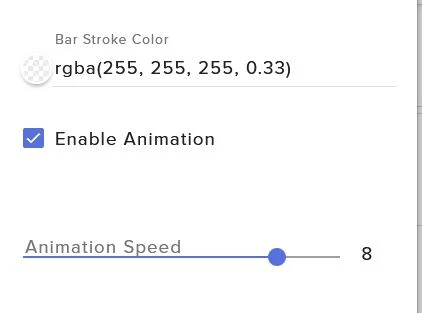
Bar Stroke Size + Color: Change the progress bar stroke size and color.
Enable Animations: Turn smooth gradient color animation on or off.
Animation Speed: Change the animation speed.
TITLE & STATS STYLING
Customize the title and stats
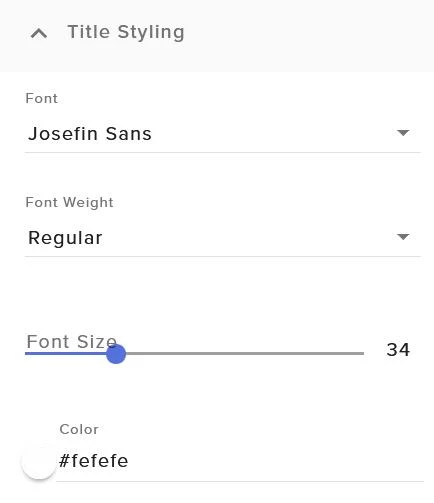
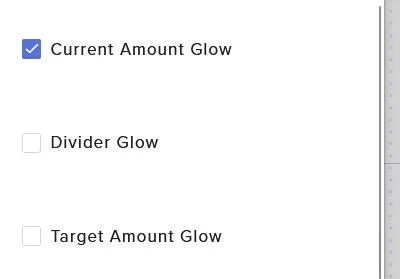
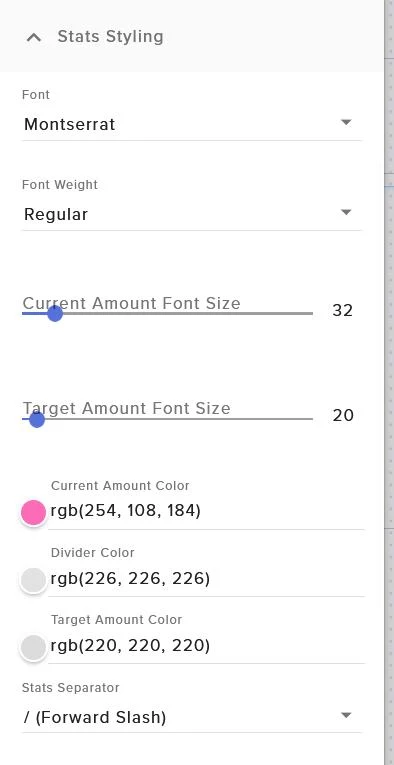
Set the font family, font size, and font color for both the Title and Stats. In Stats, set colors for the current amount, divider, and target amount. You can also enable or disable their glow.
LAYOUT & SPACING
Adjust the widget layout
Widget Scale: Change the size of the goal. Use only this slider to adjust the widget scale. Avoid changing its width and height.
Inner Stats Background Opacity: Set the opacity of the black background.
Gap Between Ring & Title: Change the gap between the title and the progress bar.
CHAT COMMANDS
Set goals manually during the stream
Use these commands to set a goal amount manually:
!settips <amount>Set the tips amount manually Example: !settips 50!setfollow <amount>Set the follow amount manually Example: !setfollow 20!setsubs <amount>Set the subscriber amount manually Example: !setsubs 30!setbits <amount>Set the bits amount manually Example: !setbits 1500HAVE ANY QUESTIONS?
Get in touch
Contact me via Discord (@widgetsbyshanz).
READY TO SET YOUR NEXT GOAL?